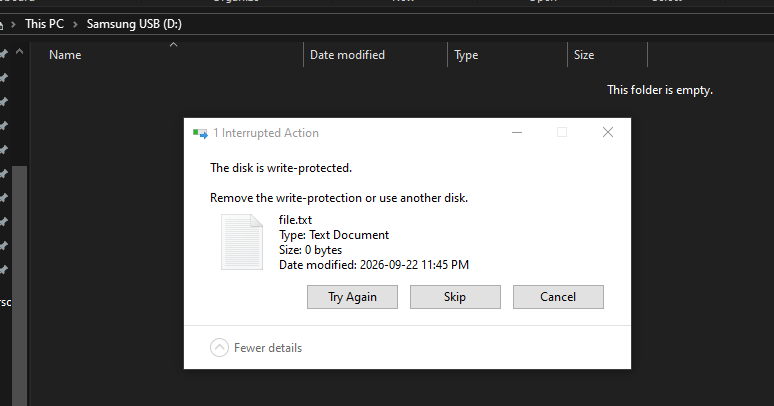
Simple solution to create a USB write blocking environment using registry editor. You can easily reverse it too by just changing a value.
Open up registry editor and go to this pathway:
Computer\HKEY_LOCAL_MACHINE\SYSTEM\CurrentControlSet\Control
After you do that go and create a new key. Name it StorageDevicePolicies
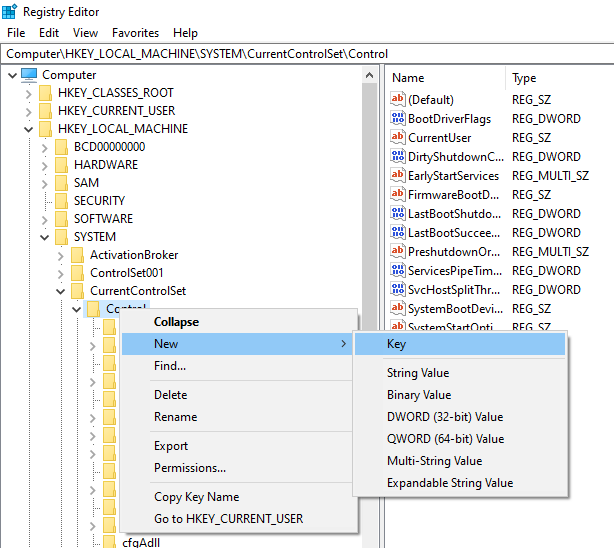
After that go to StorageDevicePolicies and create a DWORD (32-bit) Value
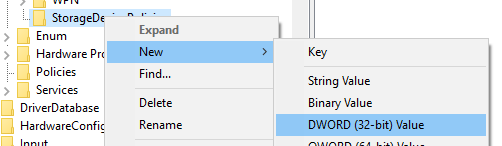
Name it WriteProtect then modify WriteProtect and change the 0 to a 1
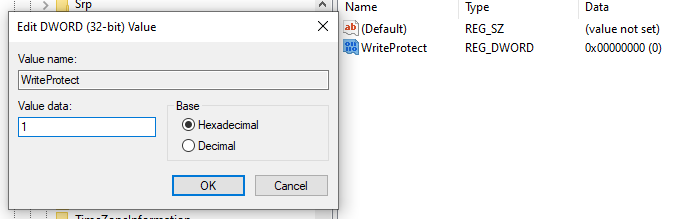
Now after that hit OK and plug in a USB. If the USB drive was already connected prior to the policy change, unplug and reinsert it so Windows can detect the updated policy. Try right click and create something or move a file in, it will not give you the option to do so. Your USB you plugged in is now write blocked. To reverse the write block simply turn the value back to 0 and hit OK and you should be able to write again.
Here I try to drag in a file.txt file into the Samsung USB and it displays an error message indicating it is write-protected.